Starting HDSterm
This page describes techniques to start HDSterm, including rlogin commands.
HDSterm Window
The HDSterm window with the Telnet selection menu is shown below.
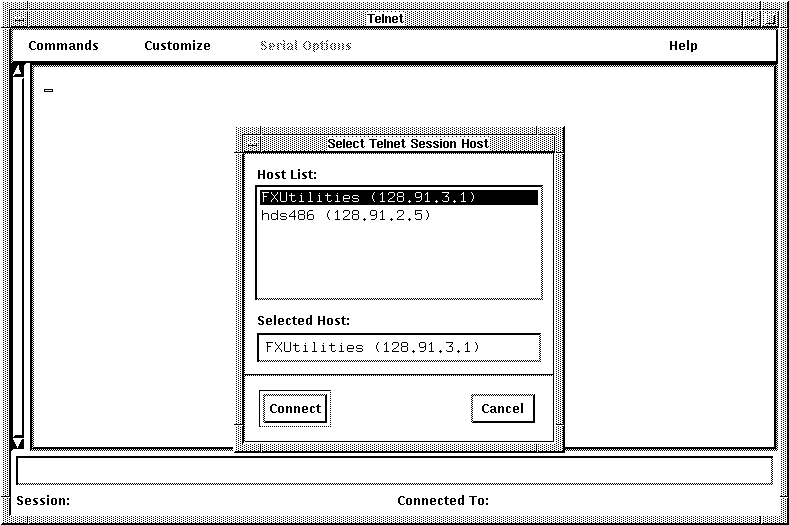
HDSterm is loaded automatically if you start the ViewStation with server code Vnn-D.hds. HDSterm is used for Telnet Windows, Serial Windows, and Console Windows on the ViewStation.
Using the tty Telnet Client
If you have selected a server code version that doesn't load HDSterm, your Telnet selection will use the ViewStation's tty client with a limited ANSI emulation. The tty Telnet client is loaded automatically if you start the ViewStation with server code Vnn.hds. This client is commonly used with ViewStations with 4 MB of memory.
HDSterm VT320 Terminal Emulation Commands
This page lists the DEC VT320 commands supported by HDSterm.
HDSterm Functions
The HDSterm window has a number of functions and settings which are available from pull-down menus.
Commands Pull-down Menu
The "Commands" pull-down menu is shown below:
Clear Display This selection clears the HDSterm window.
Redraw Window This selection redraws the HDSterm window.
Printer Options This selection brings up a sub-menu which has some options for printing. These options are discussed in greater detail in HDSterm Printer Options.
Print Window
Printer Logging ON
Printer Logging OFF
Close Printer
Clicking on the "Print Window" line sends the current contents of the HDSterm window to the printer. This corresponds to the VT320 command CSI i. The "Printer Logging" lines refer to the VT320 Autoprint function, corresponding to the CSI ? 4/5 i commands. The "Close Printer" line will empty the printer buffer and close the connection to the printer.
Reset Terminal This selection resets the HDSterm window.
Quit This selection closes the HDSterm window.
Customize Pull-down Menu
The "Customize" pull-down menu is shown below: The Customize pull-down menu has three dialog boxes, each with a number of selections. The dialog boxes have three buttons at the bottom to control the settings you have made. The "Ok" button selects your settings and closes the dialog box; the "Apply" button applies your settings immediately so you can see their effect; and the "Cancel" button closes the dialog box.
The "Window" Dialog Box
This dialog box selects features about the HDSterm window itself, such as window size and font. The selections are:
Vertical scroll bar This selection creates or removes a vertical scroll bar in the HDSTerm window. You can use the scroll bar to move up and down in the window. Utilizing DEC VT320 commands, you can also use the cursor keys for line by line movement or the Shift-cursor keys for screen by screen movement.
Info/Status Area This selection lets you remove the Information/Status Line from the HDSterm window. Clicking on the button removes this line. The default setting is to display the line. Default settings for the values are shown in bold in the table below.
The Information/Status line displays several of the current HDSterm settings, as follows:
Settings:	Permitted Values:

Insert Mode    	Insert  |   Replace
Autowrap Mode  	Wrap  |
No-wrap
Newline Mode	    LineFeed  |  NewLine
Print Device
 /dev/xxx  [  pp0  |  tty1 |  tty2  ]
Printer Status   	Open  |
Closed
Autoprint Mode  	[  Logging |  nothing ]
Printer
Controller Mode	  [  PassThru  |  nothing ]
Small font/Medium font/Large font/Default font
These selections choose the size of the font for the HDSterm window. The actual fonts used for these font selections are set in the HDSterm resource files, which are discussed on another page.
The "Display" Dialog Box
This dialog box selects options for the display within the HDSterm window. The selections are:
Auto wrap This setting selects whether Auto wrap is On or Off, that is, whether characters automatically wrap to the next line when they reach the end of a line.
Display cursor This selects whether the cursor is visible or not.
Cursor blink This selects whether the cursor, of whatever type, blinks or not.
Block cursor/Underline cursor This selects whether the window's cursor is a block or an underline cursor.
Normal video/Reverse video This selects whether the window foreground and background colors are normal or reversed.
Host status line/No status line This selects whether the window displays a host status line or not. Typically this status line reports error messages or other information coming from the host computer.
The "General" Dialog Box
This dialog box selects options for keyboard and text operation for the HDSterm window. These settings are mode switches, either one setting or the other.
Linefeed Mode/Newline Mode This setting selects whether the Return key sends a linefeed character or a "new line", which is a linefeed and a carriage return. This setting is useful for text editors which may require one or the other for correct operation.
Auto repeat/No Auto repeat
This setting selects whether keys have Auto repeat On or Off.
IBM -> VT Kbd Emulation This selects whether HDSterm substitutes a VT320 key mapping for users who have an IBM keyboard. This is sometimes useful for editing programs that have specific DEC keyboard functions. Refer to HDSterm Keymapping for details about the different mappings.
Numeric Keypad/Application Keypad This selects whether the Numeric keypad transmits numbers or whether it trans mits the special DEC command sequences required in Application mode. Some application programs want the special sequences for correct operation. This can also be set with a DEC escape sequence.
Normal cursor keys/Application cursor keys This selects whether the cursor keypad transmits cursor control commands or special DEC command sequences required in Application mode. This setting is also available by DEC escape sequence.
Serial Options Pull-down Menu The "Serial Options" pull-down menu is shown below:
Start PPP

Start SLIP
Start CSLIP
Short Break
Hangup
The "Serial Options" pull-down menu applies to the Serial Port you selected when you opened the Serial Terminal window, and lets you select the type of connection you want to use, such as SLIP, CSLIP, or PPP. It also offers you a quick way to send a Short Break or a Hangup signal. For more details and examples of Serial Terminal operation, see Serial Terminal Operation.
Help Pull-down Menu
The "Help" pull-down menu contains one entry: About HDSterm This menu brings up a brief message about HDSterm containing references to the location of manual pages and other reference materials that apply to HDSterm.
 Return to the Home Page