Remote Hosts Menu
The Remote Hosts menu lets you specify six hosts, selecting their individual configurations, which then become the host entries on your "Chooser" Telnet menus. The menu is shown below:
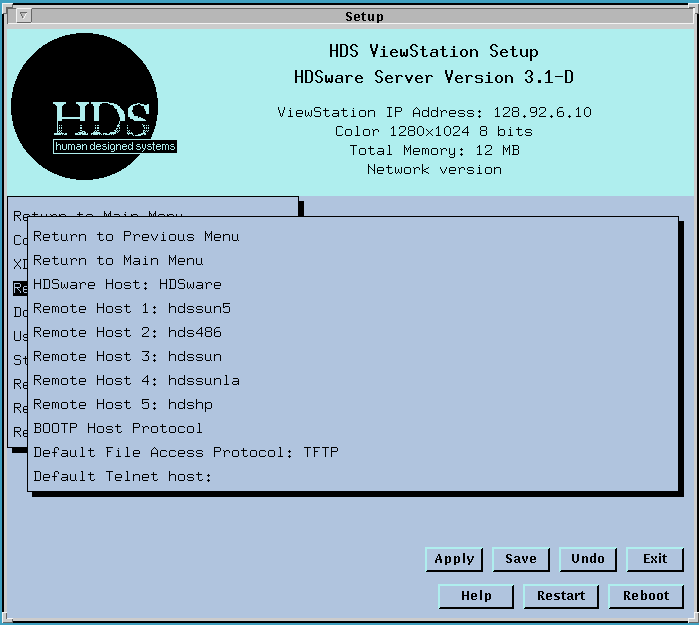
Clicking on one of these lines brings up another menu for individual host selections:
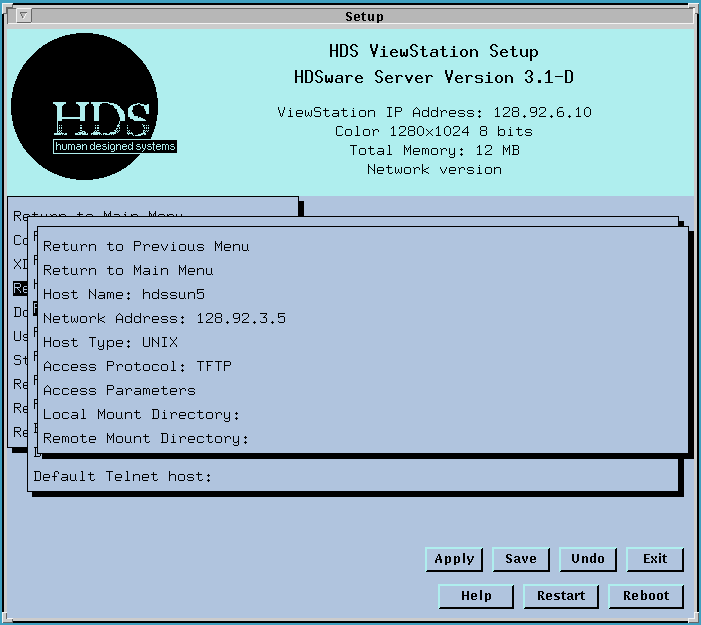
The Host Name field is the name of the host. If you don't specify a Network Address, this name will be used as its address and must be a valid IP address or host name (if you are using Domain Name Service or NIS).
The HDSware host is treated as a special case since it defines the "FXUtilities" mount point. Refer to HDSware Host for more details.
The Network Address field is the IP address of this host.
The Host Type field specifies whether the host is Unix-based or VMS-based. VMS hosts use different syntax for file names and paths. Refer to VMS hosts for more details.
The Access Protocol field specifies the type of file transfer the ViewStation uses for download processes (such as loading font files or boot files) on this remote host.
Refer to File Access Protocol for more information.
There are three selections, TFTP, FTP, and NFS, for Trivial File Transfer Protocol, File Transfer Protocol, and Network File Service. The first two protocols are very similar; TFTP is a simpler version of FTP. The TFTP protocol requires only a host name and filename to execute the file download, while FTP requires a valid logon name, a password, and (optionally) an account name in addition. This extra material makes the FTP protocol more secure, but it may be somewhat slower for small files overall because of this logon verification process. TFTP may give a somewhat better response for simple file transfer (such as font loading), though performance depends on a variety of host and network factors. Other factors, such as system security, may also be important in your installation.
The selection of TFTP or FTP affects the next line item, Access Parameters. If FTP is listed as the Access Protocol, the FTP username and password must be entered on the Access Parameters submenu.
The NFS file transfer protocol is more involved and requires access permission to specified file systems on various hosts. It must be configured by the system administrator (with root permission) but gives very powerful and fast file transfer responses. This protocol is recommended for large files and file systems.
The Access Parameters field brings up a submenu for entering the FTP username and password. If TFTP is selected, clicking on this line brings up a message box indicating that Access Parameters are not needed.
The Local Mount Directory field lets you specify a directory as a local mount point. Paths to files or directories on this remote host are then specified by prefacing the remote path with the Local Mount Directory. For example, if the Local Mount Directory is /fonts, and the remote path is given as /usr/lib/X11/HDS, then the actual search path is /fonts/usr/lib/X11/HDS. If you do not specify a Local Mount Directory, the default is "hostname", where hostname is the name given in the Host Name field above.
A detailed example appears in ViewStation File Access of this manual.
The Remote Mount Directory field specifies the path on the remote host corresponding to the specified local mount point. This is useful to simplify pathnames for fonts and server or configuration files.
The Bootp Host Protocol field lets you select the protocol, TFTP or FTP, that will be used for downloading the server image or config file from the Bootp host. If you select FTP, you can also enter the FTP access parameters in this menu.
The Default File Access Protocol field lets you select the protocol, TFTP or FTP or NFS, that will be used for any connection to a host not listed in the Remote Hosts menu.
The Default Telnet host field lets you specify the host computer you want to log onto when you open a Telnet window. When you run Telnet, this computer is the one whose address is automatically put in the Telnet connection field. If you want to log onto this host automatically, you can set the toggle button at the Setup Mode Main Menu and enter the IP address of the host computer you want as your primary connection (either an Ethernet or a SLIP host) in this field. If you have Domain Nameservice running on your system, you can enter the name of the host computer instead of its IP address. Refer to the Domain Nameserver Menu for more details on name server operation.
 Return to the Home Page