HDS netTV Viewer Client
This is the client to receive multicast video signals sent by the Simulcast client.
The netTV Viewer client can be used on any ViewStation FX, Dual or Ultra equipped with HDS netVideo Playback software. It need not be a ViewStation with the video hardware installed but must be running HDSware video software. To hear the broadcast audio, the ViewStation must have the Audio option installed.
Start the HDS netTV viewer client from the window manager's pull-down menu. Hold down the right mouse button on the root window and select the HDSperx sub-menu. Click on HDS netTV Viewer.
The HDS netTV Viewer client opens a connection to the multicast IP address and will display the HDSnetTV signal being broadcast.
Running the HDS netTV Viewer on the same ViewStation which is broadcasting via the HDS netTV Simulcast client is strongly discouraged, as this will greatly diminish the broadcast frame rate.
HDS netTV Viewer Client
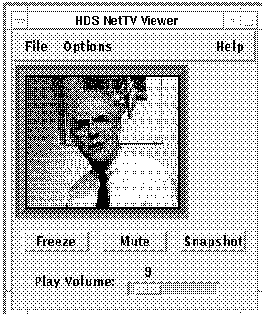
The HDS netTV Viewer offers several options:
The "File" menu offers a "Quit" option.
The "Options" menu offers four submenus (discussed below)
Video Controls - to control the local video image
Audio Controls - to control the local audio signals
Network Controls - to control the impact of simulcasting on the network
Network Addresses - to select address and port variables for multicasting
There are also buttons for "Freeze" to stop the video transmission temporarily. There are also buttons to "Mute" the audio signal. These are both toggle buttons. There is also a button to take a "Snapshot" of the video image. There is a slider bar for Play Volume.
The Video Controls - HDS NetTV Viewer
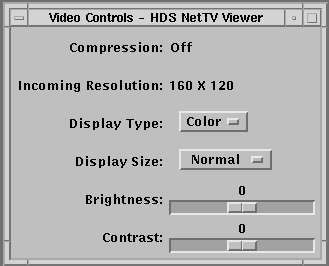
The Video Controls menu offers a number of selections.
Compression - This reports the compression of the video image as sent by the HDS netTV Simulcast client. There are three compression selections available: None, CellB, and HDSGrey. None indicates no compression of the images. CellB indicates that the ViewStation uses CellB compression (adjustable with the "Quality" slider on the Network Controls menu). HDSGrey indicates that the image color is discarded in order to improve the transmission frame rate.
Incoming Resolution - 160x120 or 320x240. This reports the pixel size of the received image.
Display Type - Color or Grey. The Grey setting uses fewer colors in the colormap and may display at a higher frame rate.
Display Size - Normal, Reduced, or Enlarged. This lets you expand the received image on your local display. Note that the number of pixels transmitted remains the same, but the displayed image size is changed.
There are two slider bars for adjustment of the video image:
Brightness
Contrast
The Audio Controls - HDS netTV Viewer Menu

The Audio Controls menu offers one selection:
Output Device - HDS Internal Speaker, External Speakers, HDS Headset, or Call port Spkr/Mic. This lets you select the type of audio output device you are using.
The Network Controls - HDS netTV Viewer Menu
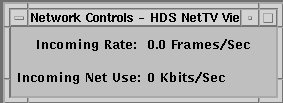
The Network Controls menu reports network usage: Incoming frame rate and Incoming network use. These are adjustable on the multicasting ViewStation.
The Network Addresses - HDS netTV Viewer Menu
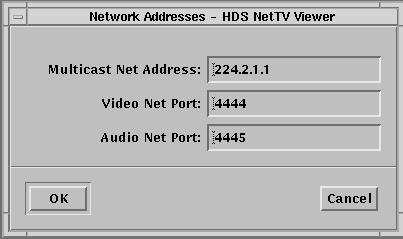
The Network Addresses menu allows you to set several network variables. All of these variables should be set the same for both the Simulcast and Viewer clients on all ViewStations using these options.
Multicast Net Address - the default is 224.2.1.1; other multicast addresses are permitted with the IP protocol.
Video Net Port - the default port is 4444; you can select another port number.
Audio Net Port - the default is 4445; you can select another port.
These addresses and ports allow selection of video signals like TV channels, the sender and receiver must have the same settings to receive the signal.
HDS Viewer Video Client Manual Page
This is the HDS Viewer's manual page.
 Return to the Home Page