HDScalc Manual Pages
This is the HDScalc man page.
NAME
hdscalc - scientific calculator for X
SYNOPSIS
hdscalc [-stipple] [-rpn] [-toolkitoption...]
DESCRIPTION
hdscalc is a scientific calculator desktop accessory that can emulate a TI-30 or an HP-10C. It is based on the X11 Release5 xcalc, but has been rewritten with added customizability and functionality using the Motif toolkit.
OPTIONS
hdscalc accepts all of the standard toolkit command line options along with two additional options:
-stipple
This option indicates that the background of the calculator should be drawn using a stipple of the foreground and background colors. On monochrome displays this improves the appearance.
-rpn
This option indicates that Reverse Polish Notation should be used. In this mode the calculator will look and behave like an HP-10C. Without this flag, it will emulate a TI-30.
OPERATION
Pointer Usage: Operations may be performed with pointer button 1, or in some cases, with the keyboard. Many common calculator operations have keyboard accelerators. To quit, press pointer button 3 on the display of the calculator.
Calculator Key Usage (TI mode): The numbered keys, the +/- key, and the +, -, *, /, and = keys all do exactly what you would expect them to. It should be noted that the operators obey the standard rules of precedence. Thus, entering "3+4*5=" results in "23", not "35". The parentheses can be used to override this. For example, "(1+2+3)*(4+5+6)=" results in "6*15=90".
The entire number in the calculator display can be selected, in order to paste the result of a calculation into text. A number may also be pasted into the display.
The following is a list of all calculator functions available for use in defining a custom calculator. In departure from the normal scheme of only being able to specify actions in a resource file, this program will also allow callbacks to be specified for any calculator button via the user data resource for that button. The calculator function for any button may therefore be specified as a translation for that button or as the user data for that button, and it would be used as an action or callback respectively. Callbacks are being used so that the translations that implement default Motif button behavior are not affected by adding the calculator function as a translation to that button. Each calculator function has both a translation and a callback with the same name. The only exception is for the digit keys where the action used is digit(n), where n is the corresponding digit, 0..9 while the callbacks are digit0, digit1, ..., digit9. Note that when used as an action the name is followed by () whereas when use as a callback only the name is needed.
1/x
Replaces the number in the display with its reciprocal. The corresponding action procedure is reciprocal().
x^2
Squares the number in the display. The corresponding action procedure is square().
SQRT
Takes the square root of the number in the display. The corresponding action procedure is squareRoot().
CE/C
When pressed once, clears the number in the display without clearing the state of the machine. Allows you to re-enter a number if you make a mistake. Pressing it twice clears the state, also. The corresponding action procedure for TI mode is clear().
AC
Clears the display, the state, and the memory. The action procedure to clear the state is off().
INV
Invert function. See the individual function keys for details. The corresponding action procedure is inverse().
sin
Computes the sine of the number in the display, as interpreted by the current DRG mode (see DRG, below). If inverted, it computes the arcsine. The corresponding action procedure is sine().
cos
Computes the cosine, or arccosine when inverted. The corresponding action procedure is cosine().
tan
Computes the tangent, or arctangent when inverted. The corresponding action procedure is tangent().
DRG
Changes the DRG mode, as indicated by 'DEG', 'RAD', or 'GRAD' at the bottom of of the calculator ``liquid crystal'' display. When in 'DEG' mode, numbers in the display are taken as being degrees. In 'RAD' mode, numbers are in radians, and in 'GRAD' mode, numbers are in grads. When inverted, the DRG key has a feature of converting degrees to radians to grads and vice-versa. Example: put the calculator into 'DEG' mode, and enter "45 INV DRG". The display should now show something along the lines of ".785398", which is 45 degrees converted to radians. The corresponding action procedure is degree().
e
The constant 'e'. (2.7182818...). The corresponding action procedure is e().
EE
Used for entering exponential numbers. For example, to get "-2.3E-4" you'd enter "2 . 3 +/- EE 4 +/-". The corresponding action procedure is scientific().
log
Calculates the log (base 10) of the number in the display. When inverted, it raises "10.0" to the number in the display. For example, entering "3 INV log" should result in "1000". The corresponding action procedure is logarithm().
ln
Calculates the log (base e) of the number in the display. When inverted, it raises "e" to the number in the display. For example, entering "e ln" should result in "1". The corresponding action procedure is naturalLog().
y^x
Raises the number on the left to the power of the number on the right. For example "2 y^x 3 =" results in "8", which is 2^3. For a further example, "(1+2+3) y^x (1+2) =" equals "6 y^x 3" which equals "216". The corresponding action pro cedure is power().
PI
The constant 'pi'. (3.1415927....) The corresponding action procedure is pi().
x!
Computes the factorial of the number in the display. The number in the display must be an integer in the range 0-500, though, depending on your math library, it might overflow long before that. The corresponding action procedure is factorial().
(
Left parenthesis. The corresponding action procedure for TI calculators is left Paren().
)
Right parenthesis. The corresponding action procedure for TI calculators is right Paren().
/
Division. The corresponding action procedure is divide().
*
Multiplication. The corresponding action procedure is multiply().
-
Subtraction. The corresponding action procedure is subtract().
+
Addition. The corresponding action procedure is add().
=
Perform calculation. The TI-specific action procedure is equal().
STO
Copies the number in the display to the memory location. The corresponding action procedure is store().
RCL
Copies the number from the memory location to the display. The corresponding action procedure is recall().
SUM
Adds the number in the display to the number in the memory location. The corresponding action procedure is sum().
EXC
Swaps the number in the display with the number in the memory location. The corresponding action procedure for the TI calculator is exchange().
+/-
Negate; change sign. The corresponding action procedure is negate().
.
Decimal point. The action procedure is decimal().
Calculator Key Usage (RPN mode): The number keys, CHS (change sign), +, - , *, /, and ENTR keys all do exactly what you would expect them to do. Many of the remaining keys are the same as in TI mode. The differences are detailed below. The action procedure for the ENTR key is enter().
<-
This is a backspace key that can be used if you make a mistake while entering a number. It will erase digits from the display. (See BUGS). Inverse backspace will clear the X register. The corresponding action procedure is back().
ON
Clears the display, the state, and the memory. To clear state, the action procedure is off.
INV
Inverts the meaning of the function keys. This would be the f key on an HP calculator, but xcalc does not display multiple legends on each key. See the individual function keys for details.
10^x
Raises "10.0" to the number in the top of the stack. When inverted, it calculates the log (base 10) of the number in the display. The corresponding action procedure is tenpower().
e^x
Raises "e" to the number in the top of the stack. When inverted, it calculates the log (base e) of the number in the display. The action procedure is epower().
STO
Copies the number in the top of the stack to a memory location. There are 10 memory locations. The desired memory is specified by following this key with a digit key.
RCL
Pushes the number from the specified memory location onto the stack.
SUM
Adds the number on top of the stack to the number in the specified memory location. x:y Exchanges the numbers in the top two stack positions, the X and Y registers. The corresponding action procedure is XexchangeY().
R v
Rolls the stack downward. When inverted, it rolls the stack upward. The corresponding action procedure is roll().
blank
These keys were used for programming functions on the HP-10C. Their functionality has not been duplicated in xcalc.
Finally, there are four additional action procedures/callbacks: bell(), which rings the bell; selection(), which performs a cut on the entire number in the calculator's ``liquid crystal'' display; paste(), which pastes the current select buffer into the display if it can be interpreted as a number; and quit(), which turns off the calculator (exits the program).
ACCELERATORS
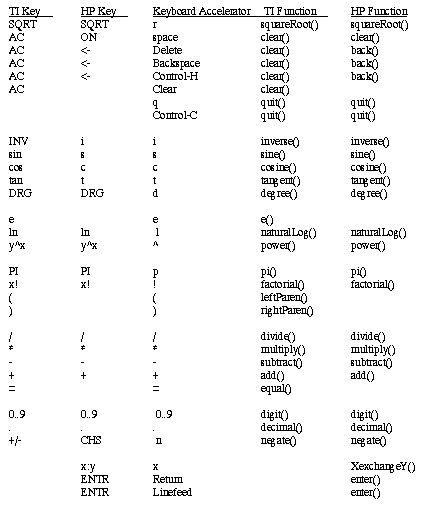
Accelerators are shortcuts for entering commands. xcalc provides some sample keyboard accelerators; also users can customize accelerators. The numeric keypad accelerators provided by xcalc should be intuitively correct. The accelerators defined by xcalc on the main keyboard are given below:
CUSTOMIZATION
The application class name is XCalc.
hdscalc has an enormous application defaults file which specifies the position, label, and function of each key on the calculator. It also gives translations to serve as keyboard accelerators. Because these resources are not specified in the source code, you can create a customized calculator by writing a private application defaults file, using the Motif PushButton and Form widget resources to specify the attachments of the buttons (determining relative position and size), the label for each button, and the function of each button.
The foreground and background colors of each calculator key can be individually specified. For the TI calculator, a classical color resource specification might be:
XCalc.ti.XmPushButton.background:  gray50

XCalc.ti.XmPushButton.foreground:  white
For each of buttons 20, 25, 30, 35, and 40, specify:
XCalc.ti.button20.background: black

XCalc.ti.button20.foreground: white
For each of buttons 22, 23, 24, 27, 28, 29, 32, 33, 34, 37, 38, and 39:
XCalc.ti.button22.background: white

XCalc.ti.button22.foreground: black
WIDGET HIERARCHY
In order to specify resources, it is useful to know the hierarchy of the widgets which compose xcalc. In the notation below, indentation indicates hierarchical structure. The widget class name is given first, followed by the widget instance name.
XCalc
xcalc
	XmForm  ti  or  hp    (the name depends on the
mode)
		XmFrame  bevel
			XmForm
 screen
				XmLabel  M

				XmToggleButton  LCD
				XmLabel
 INV
				XmLabel  DEG

 				XmLabel  RAD
				XmLabel
GRAD
				XmLabel  P

				XmPushButton  button1
 				XmPushButton  button2

				XmPushButton  button3
and so on, ...

				XmPushButton  button38
				XmPushButton
 button39
				XmPushButton  button40
APPLICATION RESOURCES
rpn (Class Rpn)
Specifies that the rpn mode should be used. The default is TI mode.
stipple (Class Stipple)
Indicates that the background should be stippled. The default is ``on'' for monochrome displays, and ``off'' for color displays.
cursor (Class Cursor)
The name of the symbol used to represent the pointer. The default is ``hand2''.
SEE ALSO
X(1), xrdb(1), the Motif Widget Set
COPYRIGHT
Copyright 1993, HDS Network Systems, Inc. Adapted from xcalc, copyright 1988, 1989, Massachusetts Institute of Technology.
AUTHORS
William Pohlmann (HDS Network Systems)
xcalc by John Bradley, University of Pennsylvania
Mark Rosenstein, MIT Project Athena
Donna Converse, MIT X Consortium
X Version 11 Last change: 1/6/93
 Return to the Home Page