HDS ViewStation System Administrator's Guide
A Hypertext Document
Console Window Commands
This
page lists and describes the commands available in the ViewStation's
Console Window.
Console Window Commands
The Console Window is really a shell which has access to the
ViewStation's internal operation. It accepts a number of shell commands,
shown on the help screen.
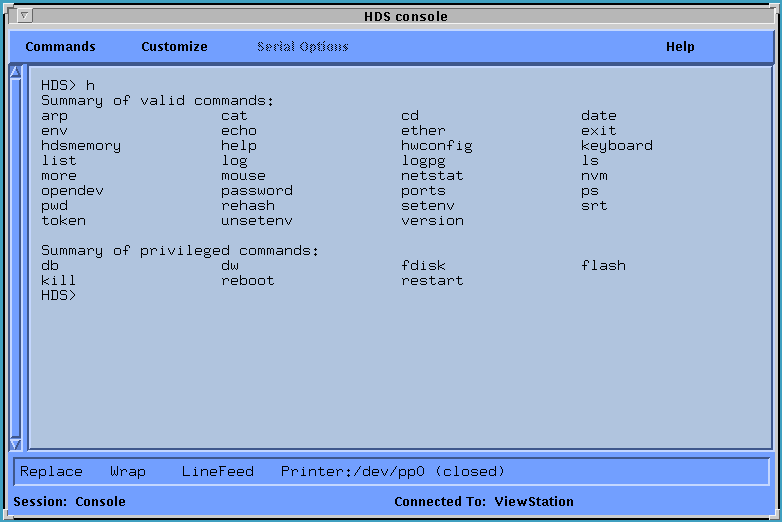
These
commands are listed below and discussed briefly. Using the help command
or entering the command followed by a "?" displays a brief help message
showing the arguments the command accepts. A more complete list is
available with the "list" command. This list includes the downloadable
ViewStation clients as well as the shell clients.
Summary of Console commands:
arp    		Display the ARP table
cat		Displays files to the standard output
cd    		Change current working directory (of the Flash File System)
date		Displays or sets the date and time
env    		Display the HDSshell environment. This command is
 			useful in analyzing the environment accessible to
 			the ViewStation for a rsh command.
echo  		Echo arguments to the standard output
ether 		Display ethernet interface statistics
exit 		Exit the Console Interface
hdsmemory	Starts the memory local client
help 		Display help for given command
			usage -   help [ command ]
			h and ? also display the help messages
hwconfig	Displays the ViewStation's hardware configuration
keyboard	Reset the keyboard
list 		List supported HDSshell commands including downloadable
			clients
log 		Display all log messages
logpg 		Display all log messages, one page at a time
ls 		List the contents of a directory
			usage -   ls [ -1ACFLRdflqrs ] [ filename ... ]
more		Displays a file one page at a time
mouse		Reset the mouse or trackball
netstat 	Display network protocol statistics
			usage - netstat [-r] [-m] [-s] [-tcp] [-udp] [-ip]
 			[-icmp] [-all}
		-r 	display routes
		-m 	display network buffer statistics
		-s 	display protocol statistics
		-tcp 	display TCP protocol statistics
		-udp 	display UDP protocol statistics
		-ip 	display IP protocol statistics
		-icmp 	display ICMP protocol statistics
		-all 	same as specifying every option
nvm		NVM commands
			usage - nvm dump  or nvm save
		dump 	Display NVM Contents
		save 	Save settings in NVM
opendev		Provide direct access to a device.
			usage -   opendev <device_pathname>
			where device_pathname> is either /dev/tty1,
 			/dev/tty2, or /dev/pp0
password	Enter Setup Configuration password
ports		Display serial and parallel port statistics
ps		Display local task status
pwd		Display current working directory
rehash		Reread the Client Configuration Files specified in Setup
setenv		Modify environment variables
			usage -   setenv variable <value>
srt		Display Token Ring Source Route table
token		Display Token Ring interface statistics
unsetenv	Remove environment variables
			usage -   unsetenv variable ...
version		Display software versions
This list is subject to change. Many of these commands have command
line arguments that affect their operation. Use help <command> for
command syntax.
Summary of privileged commands
The following commands are privileged, that is, they cannot be used
without supplying the Setup Mode password, if one has been assigned. All
commands can be defined as privileged, on an individual basis, by
specifying the passwdRequired resource in the appropriate
clients.config file. For more information see ViewStation
Client Passwords.
From the prompt line of the Console
Window, use the password command to enter the assigned password, then
use the privileged command you want. When the password is entered
successfully, the Console Window prompt changes from hds> to HDS> to
indicate privileged mode operation. If your password entry fails, you
cannot use these privileged commands.
db	Display memory using byte format
dw	Display memory using word format
fdisk	Formats the ViewStation's hard disk
flash	Program Flash memory
		usage -  flash server <filename>
			for example:
			flash boot <filename>
		boot 	Program Flash boot PROM
		files 	[ -rs ] [ -n ] [ filename ]
			-rs   	Remove Flash server code image
			-n   	Display number of bytes available for Flash
 				filesystem
		server 	Program server code image into Flash
kill	Send a signal to a process, or terminate a process
		usage -  kill [ -signal ] pid ...
reboot	Reboot ViewStation - reloads server code image
restart	Restart ViewStation from current RAM server code image
Privileged Commands in a Shell Script
If you want to use these privileged commands in a shell script,
you must handle the password command carefully. For instance, if you
want to use the "flash" command for all the ViewStations on a network,
you could use one of these variations in your shell script:
Variation #1:
rsh <ViewStation name> sh -P <<
EOF

password
<the password>
flash files <path>
EOF
Variation #2:
Put in a file:
password
<the password>
flash files <path>
then use the "do" command with:
rsh <ViewStation name> sh
-P < <filename>
Return to
Section Heading Page
 Return to the Home Page
If you need more information
than is available here, you can reach HDS via email at info@hds.com, or call us at 1.800.HDS.1551 in the USA, or at
+610.277.8300 from outside the US. For questions or problems regarding
the HDS WWW page, contact
webmaster@hds.com.
© 1996 by HDS Network Systems
Inc.