This page describes the ViewStation's internal screen saver, not the HDSperx screensaver local client. The HDSperx screensaver has many additional options, including a variety of screen images, and a lock facility. Refer to the HDSperx screensaver man pages for more detailed information on the local client screen saver.
Screen Saver Settings
The Screen Saver Settings line brings up a submenu for your screen saver selections which lets you select options for the ViewStation's Screen saver feature.
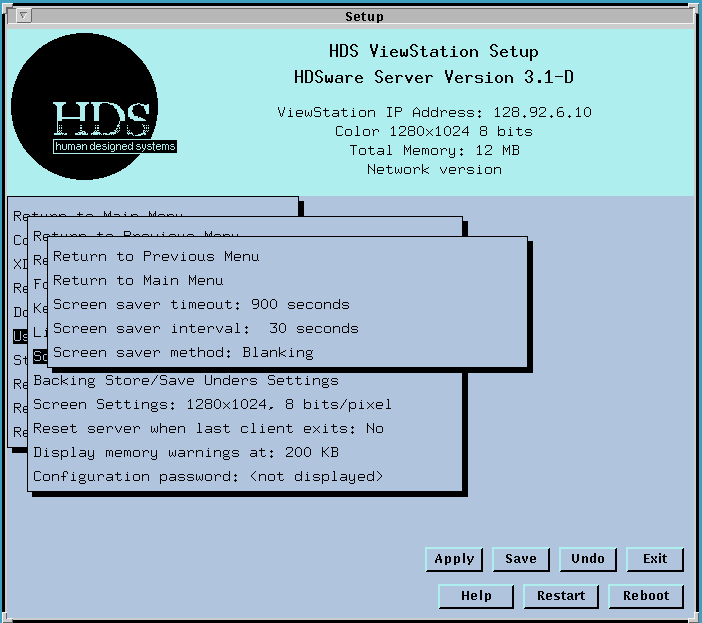
The Screen saver timeout field sets the amount of time the ViewStation waits after the last user activity (keyboard or mouse) before activating its screen saver.
To enter a new timeout value, move to this field and click the mouse button. Disabling the screen saver means that it is never used and the screen stays visible. Selecting a timeout value of 0 disables the screen saver. If it is disabled, the value shown on the timeout line is "Disabled".
The Screen saver interval field lets you set the interval between the refresh of the X logo on the screen saver low intensity screen.
The Screen saver method field determines whether the screen saver feature uses a blank screen or a low intensity X logo displayed randomly at various screen locations to minimize image burn in on the display screen. The three selections are: Energy Star (the default), Blanking, and X logo.
The Energy Star setting is recommended for ViewStations with an Energy Star monitor. The ViewStation with the Energy Star setting blanks the screen after the timeout value, then waits for the screensaver interval and goes to Energy Star mode (which allows the Energy Star monitor to go to a low-power setting). When the ViewStation is active again, the video signal "wakes up" the monitor and the screen display resumes. Setting the screensaver interval to 0 skips the intermediate blanking phase.
Monitors without Energy Star capability should use the ViewStation's X logo screensaver (or one of the other screensaver images from the HDS screensaver client), since the Energy Star setting turns the monitor Off and On, which gives the screen an unusual appearance while starting.
Using a screen saver is recommended since a monitor can be damaged by long term operation without an active video signal.
You can also use the HDSperx Screensaver client as a screen saver. This has the added features of a screen lock and various animations for the saved screen. This is discussed in another page HDS screen saver.
 Return to the Home Page