XDMCP Options Selection
XDMCP (X Display Manager Control Protocol) is a host-based handshaking protocol to establish a connection with a host and to manage your display. It works with a host client to control your logon process, start the clients you specify, and set up configuration parameters whenever you turn on your ViewStation.
Xdm is a powerful client, and a very useful one. The X11R3 xdm managed all the displays listed in its Xservers file. With X11R4, xdm offers the user the choice of managing the display. With X11R5, additional command functionality and control is available with Xdm, now called XDMCP (Xdm Command Protocol).
Entering the ViewStation address in the Xservers file turns complete control over to xdm as with the previous version. But the XDMCP menu also offers the user the option of requesting xdm to control the display, or running without xdm. In this case, the ViewStation address should NOT be entered in the Xservers file, but these items selected in the ViewStation Setup Mode menu. With these settings the ViewStation automatically sends requests as specified to xdm to control its display whenever the ViewStation is turned on.
Using xdm and configuring its files is discussed in more detail in Automatic Starting with Xdm.
The XDMCP Options Menu is shown below:
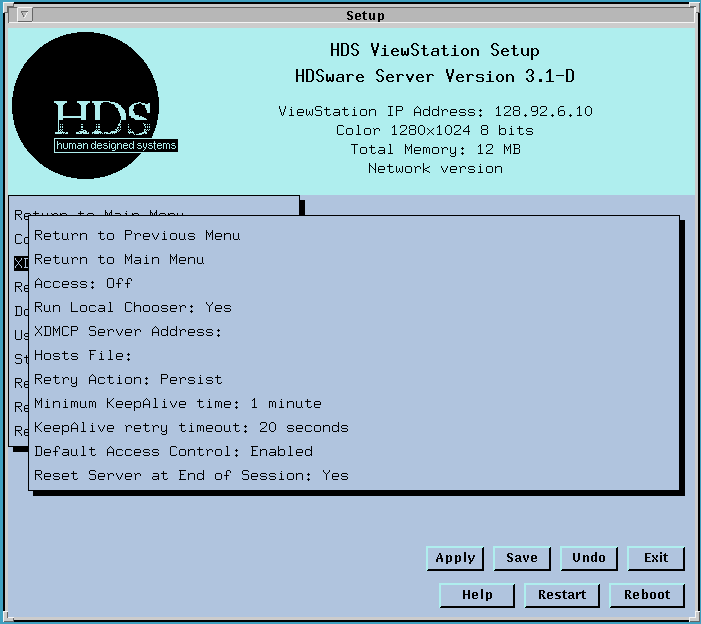
The Access Type field specifies whether you use xdmcp and which host you want to have manage your display.
There are five values for this field:
Off (default value) specifies that you do not want to use XDMCP.
Broadcast specifies that you want to accept an offer to manage your display from the first host that answers your broadcast request (your IP Broadcast Address is set in the Communications Options Menu). You can use the local HDS Chooser client to give you a menu of available hosts.
Direct specifies that you want to communicate only with the xdm client running on the host shown in the XDMCP Server Address field.
Indirect specifies that you want the host given by the XDMCP Server Address field to act as an Indirect host. This Indirect host usually forwards the request to another host computer. You can also use the local HDS Chooser client to give you a menu of available hosts.
Hosts specifies a "hosts" file that permits you to specify a number of hosts and access types for your system. Xdm Hosts File.
The Run Local Chooser field lets you select whether you run the HDS ViewStation's local Chooser client. When you use the Indirect or Broadcast access for Xdm, this client puts up a menu of available Xdm hosts. It tests the network to see which hosts respond to your Xdm request and then lets you select the one you want. This is a client running on the ViewStation. It is described in Xdm Local Chooser. It works with both R4 and R5 Xdm versions.
The XDMCP Server Address field shows the IP address of the Direct or Indirect Access host shown in the previous field. The default value is 0.0.0.0.
The Retry Action field shows whether you want the ViewStation to keep trying to get the xdm display manager to respond or not. The values are Persist and Stop. If you want to use xdm, you probably want the requests to persist until you get a response.
The Minimum KeepAlive time field gives the minimum time the ViewStation waits after it has received its last message (of any kind) from the host computer before sending a KeepAlive packet to the display manager. This lets the ViewStation continue its session even if there is no activity from the host computer. The value is an integer value in minutes, with a default value of one minute. This means that the ViewStation sends a KeepAlive packet to the display manager after 1 minute of inactivity. It sends another after 2 minutes, another after 3 minutes, and so on. Any ViewStation activity from the keyboard or the mouse will wake up the session again and reset the KeepAlive time to 1 minute. The net effect is that your session stays alive even if you leave for the weekend.
The KeepAlive retry timeout field sets the time the ViewStation waits for a response from the host after it has sent its KeepAlive packet. This is an integer value in seconds, with a default value of 20 seconds. The ViewStation waits 20 seconds after its request for a response; if it doesn't receive one, it closes the connection because the display manager hasn't answered. After it sends the first request (at one minute of inactivity) it sends another request after 2 seconds, another after 4 seconds, and so on until the retry timeout value is reached.
The Default Access Control field sets the ViewStation's Access Control security, also called MIT Magic Cookie. The default setting is Enabled. Access control means that Xdm establishes an .Xauthority file with the initial logon. This file is used for security control of other login connections. Refer to Host Access Control Security for more details and methods of using or modifying Access Control security.
The Reset Server at End of Session field selects whether the ViewStation's server software resets itself at the end of an Xdm session. The default setting is Enabled. Depending on your system configuration, this may or may not be desireable, since a server reset removes a lot of the user's settings.
These settings and timeout values should be worked out with consideration of the settings for the corresponding values for xdm on the host computer.
Note also that all of these xdm variables are saved in NVM because they are used very early in the power-up process. If you change the IP Broadcast address value, which can be changed by Apply Changes for the current session only, xdm will use the IP Broadcast address set in NVM when it starts. If you are using the Broadcast address for xdm, you should save its value in NVM each time you edit the field.
 Return to the Home Page