OPEN LOOK Virtual Window Manager Operations
The OPEN LOOK Virtual Window Manager is an extension of the basic OPEN LOOK window manager. Its operations are the same. The only difference is that the Virtual window manager works on a desktop, that is, on a virtual screen that is larger than the actual screen size. By default, its virtual screen is six screens arranged in a tiled pattern. A small window appears in the upper left corner that shows these six screens with small representations of the windows currently displayed in each screen tile. Where possible, the names of the individual windows are shown, though the names are often truncated.
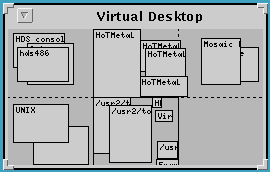
You can move a window from one screen tile to another by clicking and dragging it, or by starting it in that window using your window manager's menus. For instance, you might want to keep your xterm and Setup windows in screen tile 1, your database windows in screen tile 2, and your Framemaker documents in screen tile 3, or whatever arrangement you want. You can move from one screen to another by moving to the Virtual window manager window (which appears in all screen windows) and double-clicking on the screen tile you want.
The Virtual Desktop window can be resized to increase or decrease the number of screen tiles. It is a convenient way to organize your activities and manage a large number of clients and windows. If you want to use OLWM (not using the Virtual Desktop feature), you can use an OPEN LOOK resource to restrict the Virtual Desktop to a 1x1 tile. The OPEN LOOK resource is:
VirtualDesktop: 1x1
(default is 3x2)
Use this resource in your .Xresource file or in any of your resource files.
Using the OLVWM Window Manager
The OPEN LOOK Virtual Window Manager is a graphical user interface that lets you handle your windows by pointing with the mouse and clicking to select various window operations. This simple process applies to all of your windows, regardless of the host running them or the contents of the windows themselves.
The HDS ViewStation has the OPEN LOOK Virtual Window Manager running as a local client. This should not be confused with the OPEN LOOK environment which was designed to use an entire range of functions, including the File Manager program, editing capabilities, and so on. These functions can be used, but they must be added as part of your host environment before you can use them from within your window manager.
Pointer Shapes
The mouse cursor, called the Pointer, indicates the kind of operation you are currently using. In OPEN LOOK, the pointer is an arrow. There are other pointer shapes to give you current information, like a watch cursor when a process is busy, or a question mark when a selection isn't appropriate for that situation.
Mouse Buttons
You can use either the standard three-button mouse or an optional two-button mouse or optional trackball. The three mouse buttons behave differently; but their operation is usually just a simple click (a single press and release), a double click (two clicks in rapid succession), or click and drag (pressing a button and holding it down while you move the mouse pointer).
Different operations are selected by the left, middle, and right mouse buttons. If you have a two-button mouse, the middle button operations are selected by pressing both buttons at the same time. (The actual configuration of the mouse buttons, such as swapping left and right buttons, can be modified by the xmodmap utility.)
OPEN LOOK has made some default assignments for the mouse buttons. The three button mouse has these assignments for its buttons:
Left - SELECT - this selects objects or controls
Middle - ADJUST - this extends or reduces the number of selected objects
Right - MENU - this displays and chooses menus
Mouse Buttons and Modifier Keys
The operation of mouse buttons is affected by any modifier keys, such as Shift, Ctrl, and Alt, you have set. For instance, selecting the header bar of the window by pressing the left mouse button to move it won't work if you have the Ctrl or Alt key depressed. This is especially frustrating (and often overlooked) with other modifier keys, such as Caps_Lock and Num_Lock. If you find unexpected problems with your window manager operation, check the modifier keys. For instance, OPEN LOOK uses the Caps_Lock key to invoke micropositioning for the mouse, so you will see much slower mouse tracking.
Selecting a Window with OLVWM
When you have many windows on the screen, you move from one to another by moving the mouse pointer and clicking (with the left button) on the window to select it. You will notice that the border of the window changes color or shade as an indication that it is the currently selected window. This is called getting window focus; it means that data from the keyboard or mouse enters that window. Giving a window focus also means that it moves to the top of the stack, so if any other windows were covering it, they are moved down.
The OPEN LOOK Virtual Window Manager can give focus to a window in two ways - either by placing the pointer in the window and clicking on it (this is the default choice), or by simply moving the pointer into the window. There is a configuration selection (called a resource) that selects this mode of operation. If you point and click to give a window focus, that window retains focus regardless of where the mouse pointer is located. Many people prefer this type of operation because they can work in one window and ignore the mouse position. Others prefer to be able to get window focus by moving the mouse only, without the need to click when they are in the window.
This is a significant difference in the way a user controls the screen. The operation of the window manager controls this function and many other significant operations depending on its configuration. These questions of configuration are important and are discussed at the end of this chapter.
Window Decoration
The border around the window, called its decoration, has areas marked that permit easy manipulation of the window. These are labeled below, along with brief descriptions of their operations.
Title Bar - This is the block showing the title you (or the client) gave to this window.
Resize corner - These are the handles to resize the window.
Iconify button - This button reduces the window to an icon.
Moving a Window
You can move windows around on the screen to make your work more efficient. This is a primary function of the window manager. To move a window, place the mouse pointer in the title bar or in one of the window borders and press the left button down, then drag the mouse pointer to the new location of the window. An outline of the window will follow your movements. When the position of the window is correct, simply release the mouse button and the window appears at its new location.
Resizing a Window
You can change a window's size to make your work easier. Imagine that the window has elastic sides. By grabbing a corner (point the mouse on a corner and press the left button and hold it down), you can stretch the window to a larger size or let it contract to a smaller size. Dragging the lower left corner stretches the left and bottom sides (with the upper right corner remaining fixed). Try resizing a window - it's easier to learn by doing than by reading.
Iconifying and Deiconifying a Window
You can gain space on your screen by changing a window into an icon. The window will continue to function if it has a process running, but it is temporarily hidden from view. To iconify a window, simply move the pointer to the Iconify button and click on it. The window changes to an icon and moves to a row of icons, usually at the bottom of the root window. You can move the icons (they are windows), or define a different place for the icon row. The icon itself has an image and a label so you can distinguish them from each other. To deiconify an icon, move the mouse pointer to it and double click. The window will be restored to its original size and location on the screen.
Exiting OLVWM
You can exit the OPEN LOOK Virtual Window Manager by selecting the "Exit WM" line in the menu. Clicking on the last line "Exit" closes all of your windows and connections.
 Return to the Home Page