MWM Operations
The Motif Window Manager is a graphical user interface that lets you handle your windows by pointing with the mouse and clicking to select various window operations. This simple process applies to all of your windows, regardless of the host running them or the contents of the windows themselves.
Pointer Shapes
The mouse cursor, called the Pointer, changes shape to give you an indication of your position on the screen and the type of operation currently selected. For instance, the cursor has the standard X shape when it is located in the root window. The pointer changes to an I shape when you are inside a terminal window, indicating that you are ready to enter text. When you are resizing a window the pointer indicates by its shape the current resize process, such as an upper right corner arrow or a vertical down arrow. The hourglass pointer indicates that a process is working and you should wait for its completion.
Mouse Buttons
You can use either the standard three-button mouse or an optional two-button mouse or optional trackball. The three mouse buttons behave differently; but their operation is usually just a simple click (a single press and release), a double click (two clicks in rapid succession), or click and drag (pressing a button and holding it down while you move the mouse pointer).
Different operations are selected by the left, middle, and right mouse buttons. If you have a two-button mouse, the middle button operations are selected by pressing both buttons at the same time. (The actual configuration of the mouse buttons, such as swapping left and right buttons, can be modified by the xmodmap utility)
Mouse Buttons and Modifier Keys
The operation of mouse buttons is affected by any modifier keys, such as Shift, Ctrl, and Alt, you have set. For instance, selecting the header bar of the window by pressing the left mouse button to move it won't work if you have the Ctrl or Alt key depressed. This is especially frustrating (and often overlooked) with other modifier keys, such as Caps_Lock and Num_Lock. If you find unexpected problems with your window manager operation, check the modifier keys.
Selecting a Window with MWM
When you have many windows on the screen, you move from one to another by moving the mouse pointer and clicking (with the left button) on the window to select it. You will notice that the border of the window changes color or shade as an indication that it is the currently selected window. This is called getting window focus; it means that data from the keyboard or mouse enters that window. Giving a window focus also means that it moves to the top of the stack, so if any other windows were covering it, they are moved down.
The Motif Window Manager can give focus to a window in two ways - either by placing the pointer in the window and clicking on it (this is the default choice), or by simply moving the pointer into the window. There is a configuration selection (called a resource) that selects this mode of operation. Setting this resource will be discussed later in this chapter. If you point and click to give a window focus, that window retains focus regardless of where the mouse pointer is located. Many people prefer this type of operation because they can work in one window and ignore the mouse position. Others prefer to be able to get window focus by moving the mouse only, without the need to click when they are in the window.
This is a significant difference in the way a user controls the screen. The operation of the window manager controls this function and many other significant operations depending on its configuration.
Window Decoration
The border around the window, called its decoration, has areas marked that permit easy manipulation of the window. These are labeled below, along with brief descriptions of their operations.
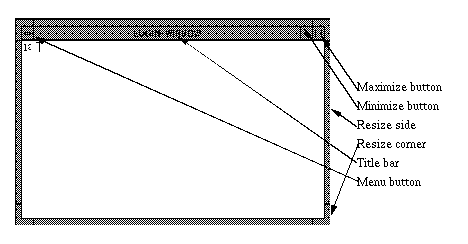
Title Bar - This is the block showing the title you (or the client) gave to this window.
Resize side/Resize corner - These are the handles to resize the window.
Maximize button - This button enlarges the window to fill the entire screen.
Minimize button - This button reduces the window to an icon.
Menu button - This button brings up the MWM menu.
Moving a Window
You can move windows around on the screen to make your work more efficient. This is a primary function of the window manager. To move a window, place the mouse pointer in the title bar and press the left button down, then drag the mouse pointer to the new location of the window. An outline of the window will follow your movements. You will notice a little box in the center of the screen which gives the location of the window's upper left corner in pixels. When the position of the window is correct, simply release the mouse button and the window appears at its new location.
Resizing a Window
You can change a window's size in several ways. Imagine that the window has elastic sides. By grabbing an edge or a corner (point the mouse on an edge or a corner and press the left button and hold it down), you can stretch the window to a larger size or let it contract to a smaller size. Dragging the left side stretches the window to the left (with the right side remaining fixed); dragging the lower left corner stretches the left and bottom sides (with the upper right corner remaining fixed). Try resizing a window - it's easier to learn by doing than by reading.
Iconifying and Deiconifying a Window
You can gain space on your screen by changing a window into an icon. The window will continue to function if it has a process running, but it is temporarily hidden from view. To iconify a window, simply move the pointer to the Minimize button and click on it. The window changes to an icon and moves to a row of icons, usually at the bottom of the root window. You can move the icons (they are windows), or define a different place for the icon row.
The icon itself has an image and a label so you can distinguish them from each other. To deiconify an icon, move the mouse pointer to it and double click. The window will be restored to its original size and location on the screen.
Maximizing a Window
If you want to work in one window for a while, you can enlarge it to take up the whole screen by maximizing it. Move the mouse pointer to the Maximize button and click on it. To restore the window to its original size, use the Window Menu, which is described below, or click on the Maximize button again.
MWM Window Menu
Pressing and holding the Menu button brings up the MWM menu. It disappears when you release the button. You can also bring up the menu by typing Shift-Esc from the keyboard. All of the menu items have keyboard key sequences, which are shown on the menu. The menu contains the selections shown below These functions are the same as the other window manager operations just described.
You can select them by dragging the mouse pointer to them and releasing the depressed mouse button. If a menu item is not available, it appears with a gray display; for instance a normal window shows the Restore command as grayed because it is already in its normal condition.
The menu items are:
Restore - Restores a window from an icon or from a maximized window.
Move - Change the location of the window.
Size - Change the size of the window.
Minimize - Iconify the window.
Maximize - Enlarge the window to the maximum screen size.
Lower - Rotate the window down to the bottom of the window stack.
Close - Kill the process in the window and make it disappear.
Some windows on your screen may not have all these options on their menu. For instance, a client's submenus may not be able to be iconified or resized, so the Minimize and Maximize functions are absent.
Exiting MWM
You can exit MWM by bringing up the MWM root menu and clicking on Quit. Another window appears asking you to confirm this choice. You can exit the window manager at any time, but generally it is a good idea to do some housekeeping beforehand. Close any windows not needed, especially submenus brought up by your clients or windows you have iconified. When you kill the window manager, all windows are restored from icons, so your screen may suddenly become very cluttered and the window you want may be obscured (and since you have no window manager running, you can't move it).
In general, you should always exit your clients in a orderly way, that is, you should specifically exit a process running in a window rather than just killing the window. An orderly exit insures that files are correctly saved and processes correctly terminated on your host. Just killing the window with the window manager may be too sudden and uncontrolled to protect your work.
 Return to the Home Page