Restart and Reset Menu Selection
The Restart and Reset Menu option allows you to restart the ViewStation from the Main Menu. This closes all network connections and then restarts with the configuration you specify (RAM or ROM/Network). Restarting the ViewStation is required for registering some functions, like the IP address, entered from Setup Mode.
When you click on the Restart and Reset Menu field, a submenu appears with several options.
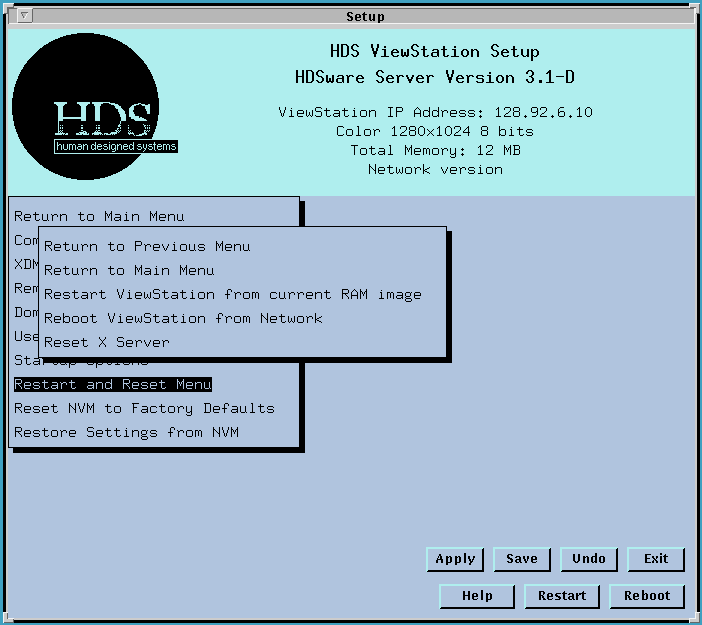
The Restart ViewStation from current RAM image option restarts the ViewStation using the server code located in its RAM memory. This selection is always present.
The Restart ViewStation from ROM/Network option goes to the boot file directory specified in the Startup Options Menu, either the ROM (the flashPROM board) or the Network, and loads the server code again, and then runs from the new code. In each case, this is a complete restart, just as if you had turned the ViewStation Off and On again.
The Reset X Server option lets you reset the ViewStation's server software. This command resets things the server has set up, like running clients, loading fonts, or assigning root window properties, but does not reset or reread internal server settings, like the Reset Server Command file, the Startup Command file, or the clients.config file. Refer to Startup and Server Reset Files for more information.
Reset NVM to Factory Defaults Selection
The Reset NVM to Factory Defaults selection allows you to change your NVM settings to their original factory settings. This is a very drastic step and will erase all your settings, including the ViewStation's IP address. You would probably only do this if you were moving the ViewStation to a new location or had some problem with conflicting settings.
There are two fields which are not reset to "Factory Defaults", but retain their current NVM values:
Screen Settings - The current monitor settings are preserved.
Setup Mode Password - This is changed by the procedure outlined below.
The Reset NVM to Factory Defaults field is password protected. Clicking on this field brings up a dialog box asking you to confirm this command and giving you a warning message. Special considerations about changing the password apply when you use the Reset NVM to Factory Defaults field. This reset field is password protected, so you must enter the password to execute the command. This resets the contents of NVM, except for the password field (and the fields mentioned above).
If you want to clear the password, you must follow these steps:
Go to the User Preferences menu and use your password to edit the password field
Enter an empty password (press the Return key) and confirm your selection
Save the new (empty) password in NVM
Run the Reset NVM to Factory Defaults command.
This procedure will clear the password from NVM and let you reset everything to factory defaults. You can also reset your NVM to Factory Default settings from Monitor Mode with the "factory" command.
Restore Settings from NVM This selection lets you reset your current NVM settings to the values you last Saved in NVM. This is a convenient way to undo all the temporary changes you might have made.
 Return to the Home Page