PPP Protocol for Serial Communications
You can use the PPP Protocol (otherwise called Internet standard Point to Point Protocol) to run IP connections to X on a host computer. PPP is defined by RFCs 1171 and 1172. The PPP protocol is more than a superset of SLIP and CSLIP. The PPP protocol will not use or recognize SLIP or CSLIP packets.
PPP provides link-level error detection, IP address negotiation and assignment, Address/Control fields and Protocol field compression, Link-level authentication (defined by PAP in RFC 1172 and CHAP in RFC October 1991 Draft), Link-status monitoring by LQM (LCP Draft August 1991), as well as support for SLIP (RFC 1055) and CSLIP (RFC 1144). PPP corrects many of the deficiencies of SLIP and permits many more features and adjustments in the serial communications interface.
PPP must be installed on your host computer. There are many commercial programs which offer PPP connections for communications or you can obtain PPP from the Internet. It is included with all HDS ViewStation terminals.
Using the PPP Protocol
To select the PPP Protocol, go to the Communications Options menu and click on Serial Port Use line (for the line you want). Select the PPP option, then click on the PPP Options line. CAUTION: Select PPP, or SLIP options only if that is your only connection. If you have other connections to the host or Ethernet and use PPP only occasionally, you should select "Unspecified" as your serial port use and use the "Start PPP" option on the pull-down menu. The reason for this "Unspecified" selection is that if "PPP" is your Serial Port Use selection, the ViewStation will send repeated requests to the host to start the PPP daemon, even if you aren't currently using a PPP session.
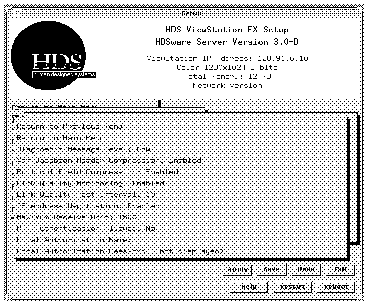
The PPP Options menu contains a lot of PPP settings, which are explained briefly below. More detailed explanations are provided with the PPP products.
The Diagnostic Message Level field selects the level of message reporting for PPP. The values are Low, Medium, and High with the default setting of Low. These messages can help you in PPP negotiations and Medium is a useful setting for getting set up for the first time.
The Van Jacobson Header Compression field, when Enabled, allows the ViewStation to use TCP header compression (also known as CSLIP compression) if supported by the remote host. When Disabled, the ViewStation will not attempt or allow TCP header compression. The default setting is Enabled.
The Protocol Field Compression field enables or disables the compression of PPP protocol fields. The default value is Enabled.
The fields Link Quality Monitoring and Link Quality Test Interval control the generation of Link Quality packets. Link Quality Monitoring, when enabled, requests that the remote host send Link Quality Report packets periodically, at a rate determined by the Link Quality Test Interval field. When Monitoring is disabled, the ViewStation will not require or participate in link quality monitoring. The default is setting is Enabled with 10 sec interval.
The IP Address Negotiation field will disable IP address negotiation. This assumes that both PPP participants know the address of their peer. The default setting is Enabled.
The Maximum Receive Unit field allows setting the maximum PPP receive unit size. It can range from 128 to 1500. The default setting is 1500.
The PAP Authentication Allowed permits a remote host to ask for or provide PAP authentication when establishing a link. PAP authentication involves the transmission of cleartext passwords and can be a security problem. The default setting is Disabled.
The Local Authorization Name and Local Authorization Password fields give the hostname and host password which the ViewStation will use for PAP authentication if requested by the remote host.
 Return to the Home Page